
Step 1
Copy your calendar link from SportsEngine.
SportsEngine shows the link on its website. A computer is easiest. Copy it on a Mac signed in to your Apple Account and you can paste it on your iPhone.
Skip the Subscribe button in the SportsEngine app. It adds the schedule to the calendar on your phone only, and doesn’t give you a link to share.
-
01
Open your schedule
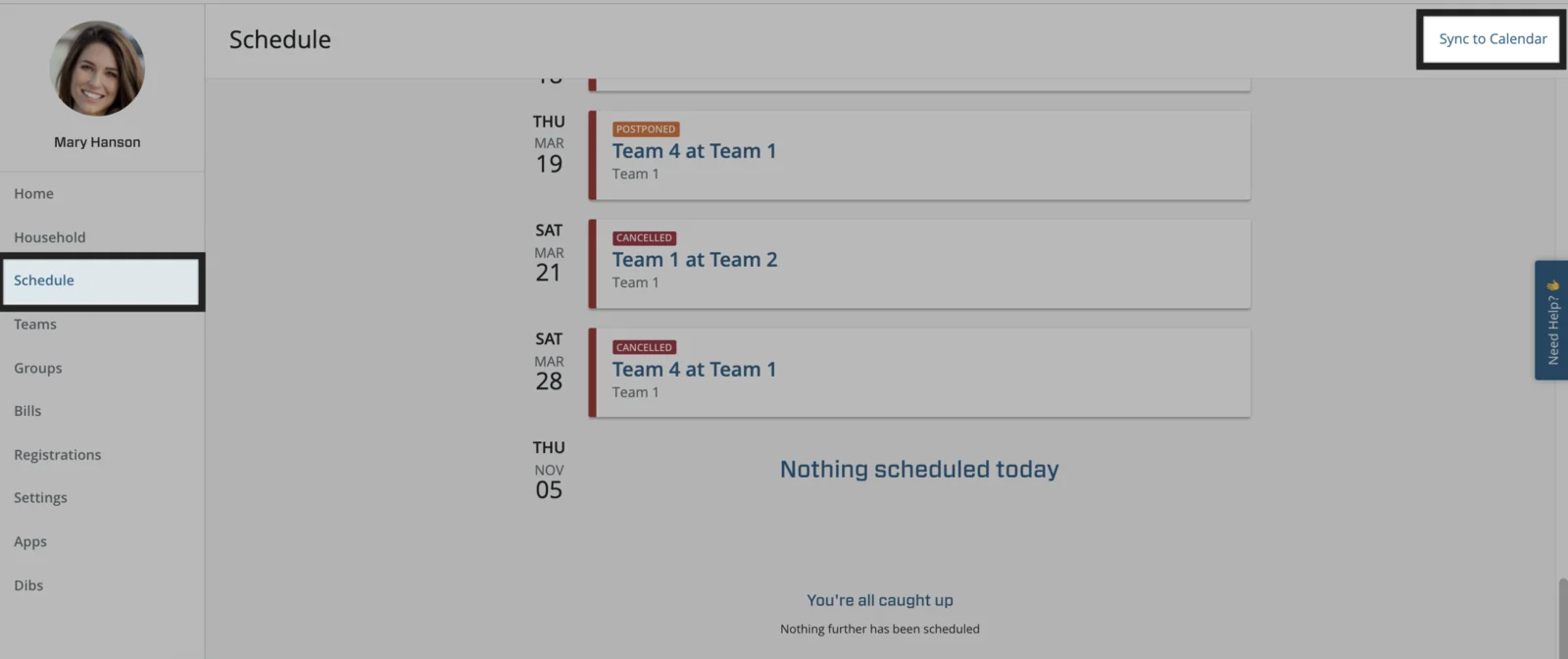
Sign in to your SportsEngine account on the web and click Schedule in the menu on the left.
-
02
Click Sync to Calendar
It’s in the top-right corner of the schedule. Some SportsEngine help pages call it Sync Schedule.
-
03
Choose Other Calendar, then Copy
Don’t choose Google Calendar, even if your family uses it. That subscribes your own Google account instead of giving you the link.
Using your club’s website instead
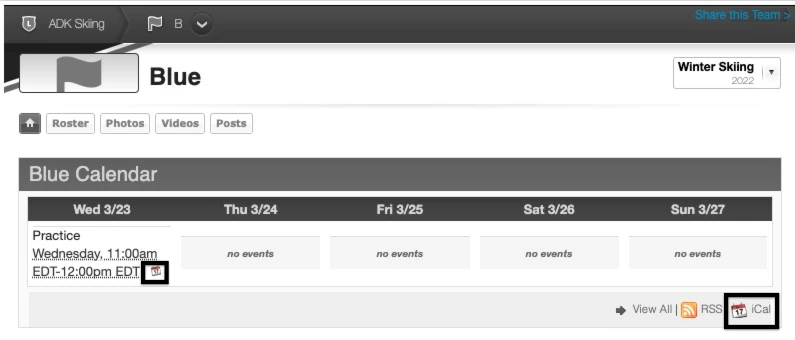
Many clubs run their website on SportsEngine. Open your team’s page, find its calendar, and click iCal next to View All and RSS. Copy the link that opens.
A club’s website and the SportsEngine app don’t always list the same events. If you’re not sure, ask your team manager which schedule they keep up to date.
Step 2
Paste the link into GamePlan.
Only the person setting it up needs GamePlan. It takes about a minute.
-
1
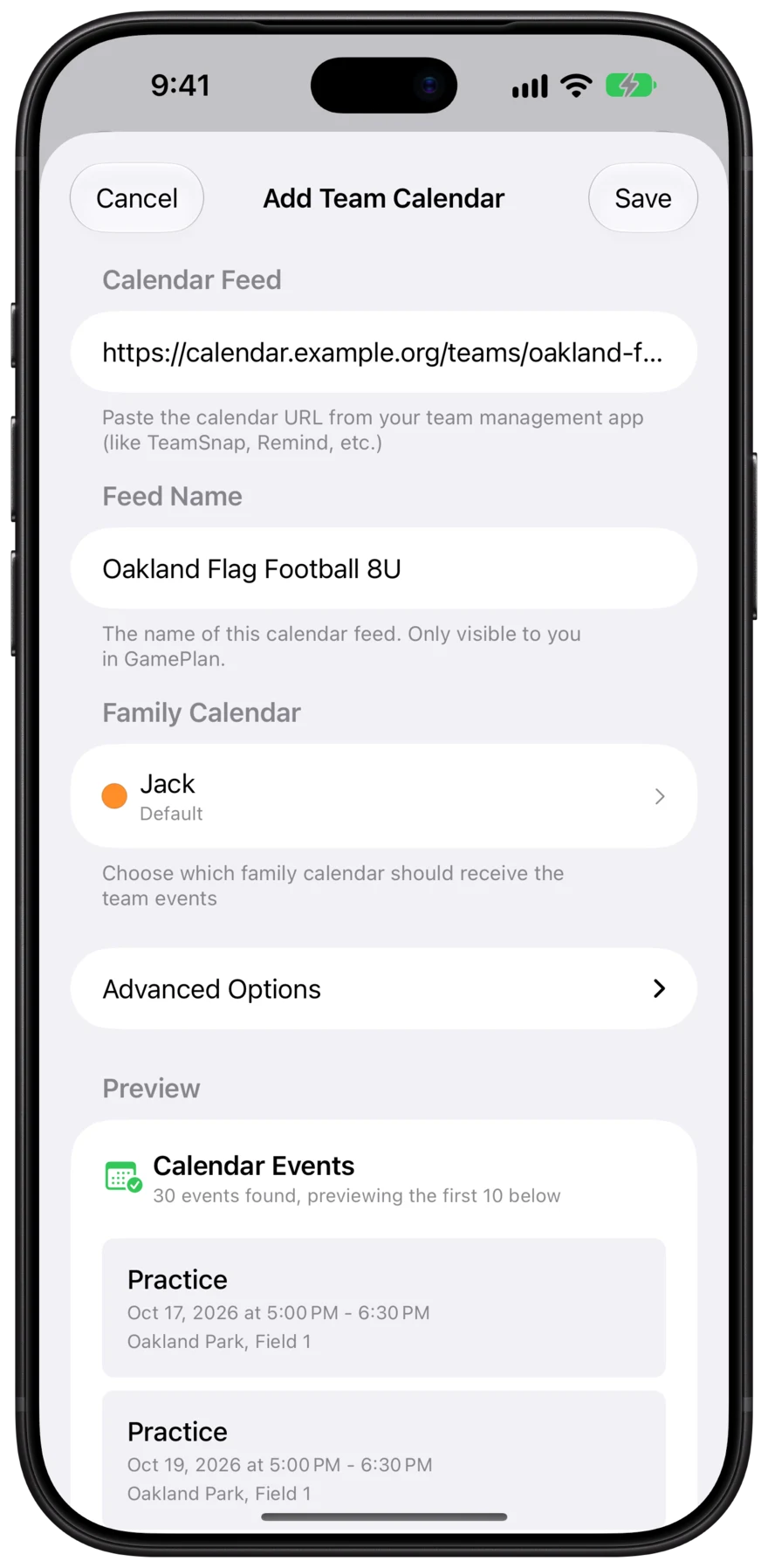
Tap + and choose Calendar Subscription
GamePlan fills in the SportsEngine link you just copied. You can also share the link to GamePlan from Safari.
-
2
Choose whose calendar it goes on
Pick a calendar you’ve shared with your family, like “Emma.” It can be an iCloud, Google, or Outlook calendar. How to set one up
-
3
Check the preview and tap Save
GamePlan shows you the upcoming SportsEngine events before anything is added to the calendar.
The result
The SportsEngine schedule, on everyone’s calendar.
Everyone you shared the calendar with sees every game and practice in the calendar app they already use. Nobody else has to install SportsEngine or GamePlan.

- One setup for the whole family
- Parents, grandparents, and kids all see the schedule without subscribing to SportsEngine’s calendar one by one.
- iPhone, Mac, and Android
- Put it on a shared iCloud calendar for Apple devices, or a shared Google calendar so family members on Android see it too.
- Changes show up everywhere
- When the coach moves a game in SportsEngine, GamePlan updates it on every calendar and tells you exactly what changed.
FAQ
SportsEngine questions.
- Why not just tap Subscribe in the SportsEngine app?
- It only adds the schedule to the calendar on the phone you tapped it on. Your partner, the grandparents, and older kids would each have to set it up themselves. With GamePlan, you set it up once on a calendar you’ve already shared with them.
- My child’s team is missing from my schedule.
- Sign in with the account that registered your child, or ask the account holder to add you as a guardian. If a team shows you as a fan, or your child has two profiles, SportsEngine may leave that team out.
- Does it work with Google Calendar?
- Yes. Add your Google account to your iPhone, then choose a shared Google calendar in GamePlan. Family members see the SportsEngine schedule in Google Calendar on Android, iPhone, or the web.
- Will it show up on our Skylight or other family wall calendar?
- Yes, as long as the wall calendar is connected to the iCloud or Google calendar GamePlan adds the SportsEngine events to.
- What happens when the coach changes the schedule?
- GamePlan checks several times a day, updates the event on everyone’s calendar, and sends you a notification saying what changed. Swipe the team in GamePlan to sync right away.
- Our club is moving off SportsEngine.
- GamePlan works with any app that has a calendar link. Copy the link from the new app, then edit the team in GamePlan and paste it in. Your family’s calendars stay the same.
Kids on teams in other apps?
GamePlan works with any app that has a calendar link, so every team ends up on the same family calendars. See all team apps




Get the whole family on the same page.
Free for your first team. Set up in about a minute.

SportsEngine is a trademark of its owner. GamePlan isn’t affiliated with or endorsed by SportsEngine. Screenshots of SportsEngine are from SportsEngine’s help center.